Keycloak Workflows: Automatically Notify, Disable and Delete Inactive Users
September 22, 2026
Tags: #keycloak #workflows #iga #lifecycle-management #identity-governance
Creating user accounts is easy. Getting rid of them once nobody needs them anymore is not. In many environments, accounts pile up over the years that nobody has used for months or even years. Each of these accounts is a potential entry point, and the cleanup is usually left to an admin who will do it manually “at some point”. Or not at all.
With Workflows, Keycloak offers a feature that automates exactly these kinds of tasks. In this article, I show what the term IGA is about, how a workflow is structured, and how I use it to first notify inactive users by email, then disable them, and finally delete them.
What is IGA?
IGA stands for Identity Governance and Administration. It describes a combination of policies, processes and technology an organization uses to manage its user accounts and to control who has access to what.
It covers two areas:
- Administration, meaning lifecycle management: creating, updating and removing accounts.
- Governance, e.g. regular reviews and certifications of access rights (access certification).
For Keycloak Workflows, the first part is the one that matters: keeping the lifecycle of the users in your environment under control, and doing it automatically.
Workflows in Keycloak: a short history
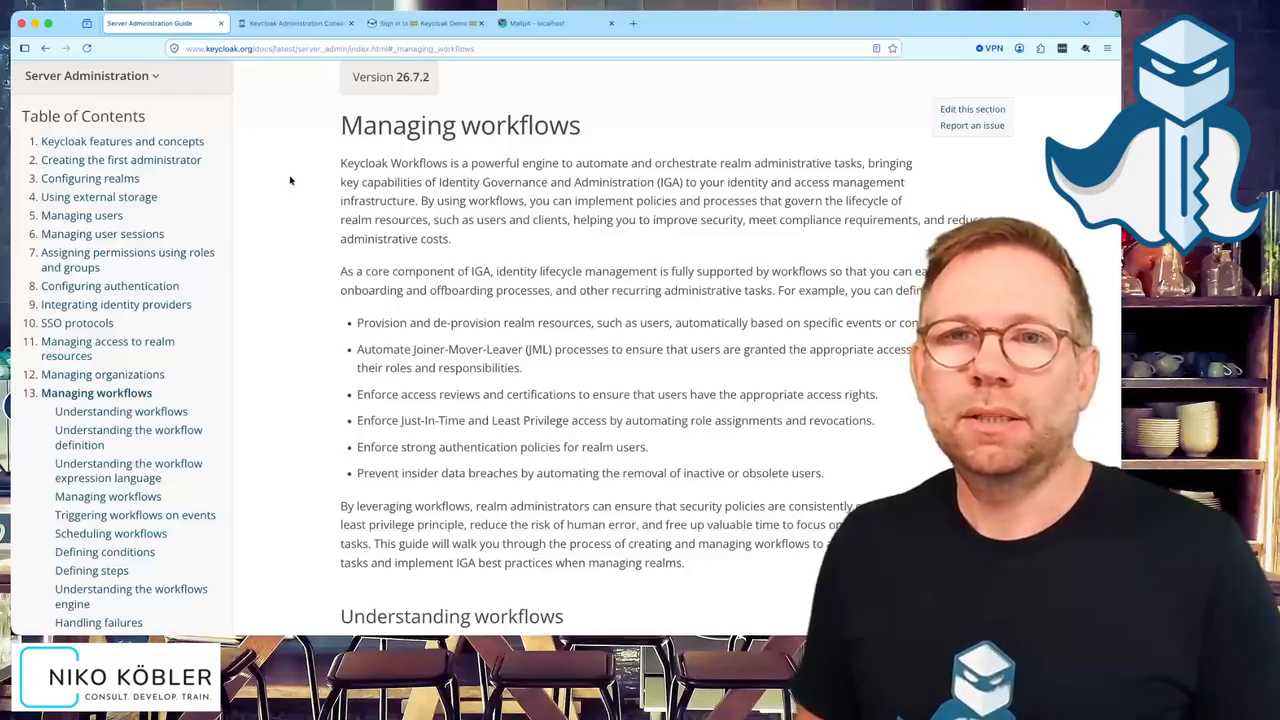
Workflows were introduced in Keycloak 26.4 as an experimental feature. With 26.5 they became a preview feature, and with 26.6 they are officially supported. This article is based on version 26.7.
If you want to dig deeper, there are two good sources:
- the blog post “Automating Administrative Tasks with Workflows in Keycloak 26.4 (experimental)” from October 2025, which introduced the feature,
- the chapter Managing workflows in the Server Administration Guide, which describes all configuration options in detail.
Workflows in the Admin Console
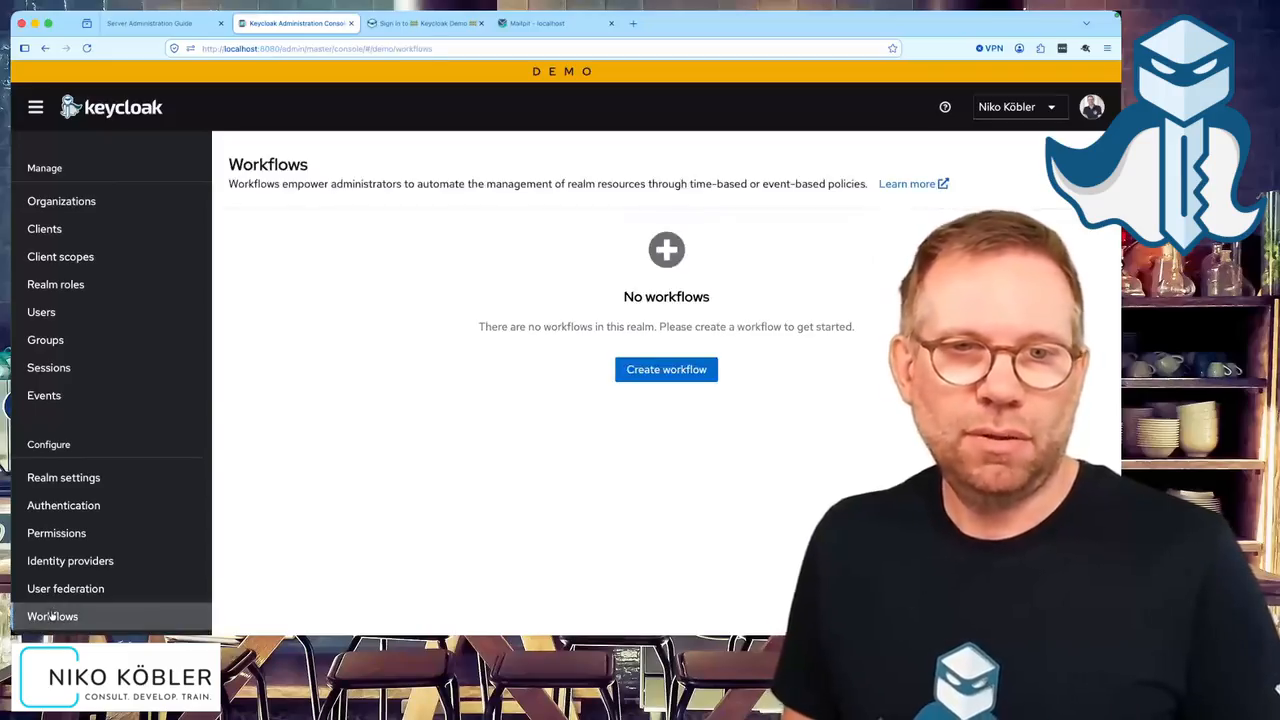
In the Admin Console, Workflows is the last entry in the left-hand menu. The feature is enabled by default, so I don’t have to switch it on with a feature flag first. In a new realm, the list is empty, of course.
If you click Create workflow and expect a graphical editor with boxes and arrows, you’ll be disappointed. The workflow editor is simply a text field where I enter a definition in YAML.
A small side note, because I just find it funny: The UI converts the YAML to JSON and sends it to the server. The server serializes the JSON into a string and stores it in the database. On the way back, the server reads the string, turns it into an object again, sends it to the UI as JSON, and the UI converts it back to YAML. Fittingly, the UI says “Create a new workflow by providing its JSON representation” right above the field labeled “Workflow YAML”.
Anatomy of a workflow
My example is, in my opinion, the most interesting use case: users who haven’t logged in for a certain amount of time should first be notified, then disabled, and finally deleted.
The complete definition looks like this:
name: Disable inactive users
enabled: true
on: user_authenticated
concurrency:
  restart-in-progress: "true"
if: has-identity-provider-link(oidc)
steps:
  - uses: notify-user
    after: 20s
    with:
      subject: Please be aware of this!
      message: If you don't login again in the next time, your account will be deleted!
  - uses: disable-user
    after: 20s
  - uses: delete-user
    after: 20s
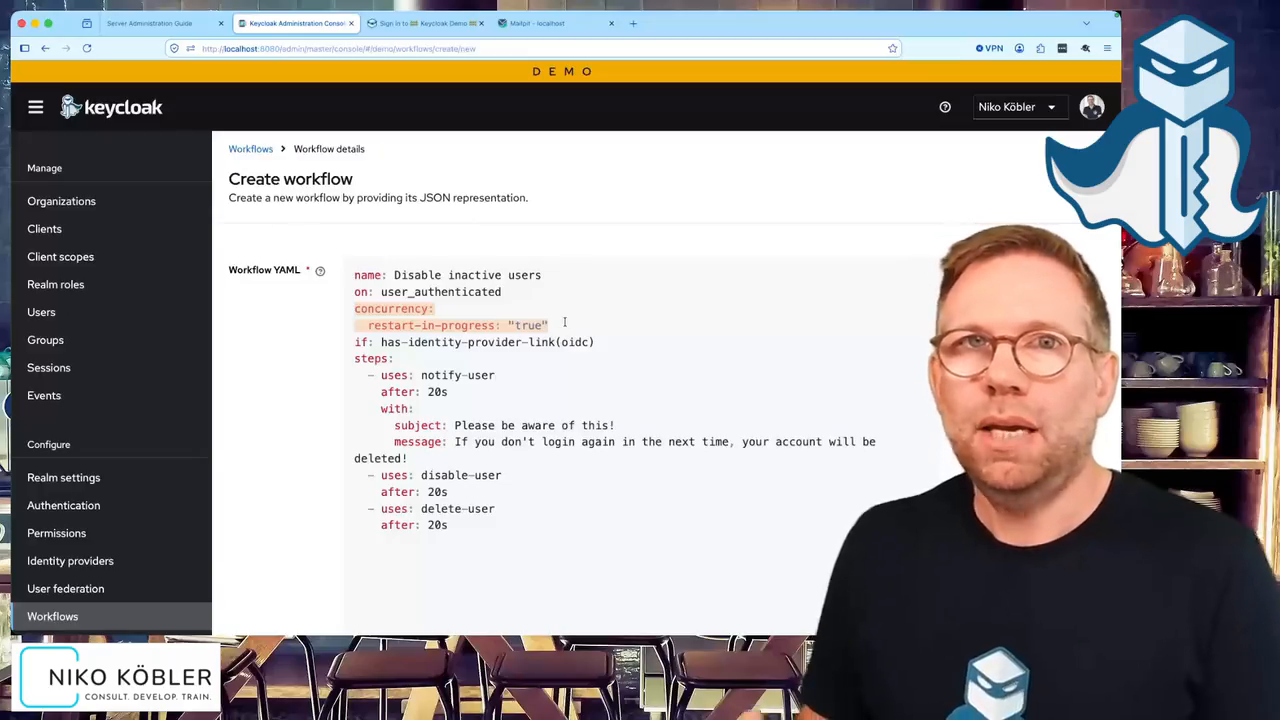
Let’s look at the individual parts.
name and enabled
name is simply the name of the workflow as it appears in the overview.
enabled: true makes sure the workflow is active right after saving.
I can also omit the flag, because a workflow is enabled by default.
on: the triggering event
With on, I define which event the workflow reacts to.
In my case, this is user_authenticated, i.e. a successful user login.
There’s an important point here that you need to understand: After creating a workflow, it does not immediately start running for all users in the realm. It is only started when the defined event occurs, and then exactly for the user who triggered the event. As long as nobody logs in, nothing happens.
if: the condition
With if, I restrict which users the workflow applies to.
In my example, these should only be users coming from a specific external identity provider:
if: has-identity-provider-link(oidc)
oidc is the alias of the identity provider configuration in my realm.
This lets me scope the workflow exactly to the users of this one IdP.
There are further conditions as well, e.g. whether a user has a certain attribute, is a member of a group, or has been assigned a role.
If I omit if entirely, the workflow applies to all users who trigger the event.
steps: the step chain
Under steps, I define the steps that are executed one after another, optionally with a time delay.
Each step consists of:
uses: the name of the step,after: the time span after which the step is executed, counted from the previous step,with: optional parameters as key-value pairs.
In my example, this means:
notify-user: 20 seconds after login, the user receives an email saying the account will be deleted unless they log in again soon. Withsubject, I set a custom subject. Withoutsubject, Keycloak uses the default subject “Account Disable Warning”.disable-user: 20 seconds after the email, the user is disabled.delete-user: Another 20 seconds later, the user is deleted.
The 20 seconds are, of course, only chosen for the demo; I don’t want to wait several days in the video. In production, we’re talking about days or weeks rather than seconds.
To send the email, an SMTP server must of course be configured in the realm.
concurrency: what happens when the user logs in again?
This part is still left:
concurrency:
  restart-in-progress: "true"
It controls what happens when the triggering event occurs again while the workflow is still running for this user.
With restart-in-progress: "true", the workflow starts over from the beginning.
That’s exactly what I want in my scenario: If a user receives the notification email and then logs in again, they won’t be disabled 20 seconds later. Instead, the workflow restarts, and the user only gets another email after the first period has elapsed. So the login resets the “inactivity clock”.
However, once the user is disabled, they can no longer log in and therefore can’t reset the workflow themselves. The time between disabling and deleting is the window in which an admin can still step in, re-enable the user and delete the active workflow.
Be careful with delete-user
delete-user really means delete.
The user is not put into a “deleted” state but removed from the database.
Afterwards, the user is gone.
So use this step with care and with sufficiently generous time periods.
Saving and editing
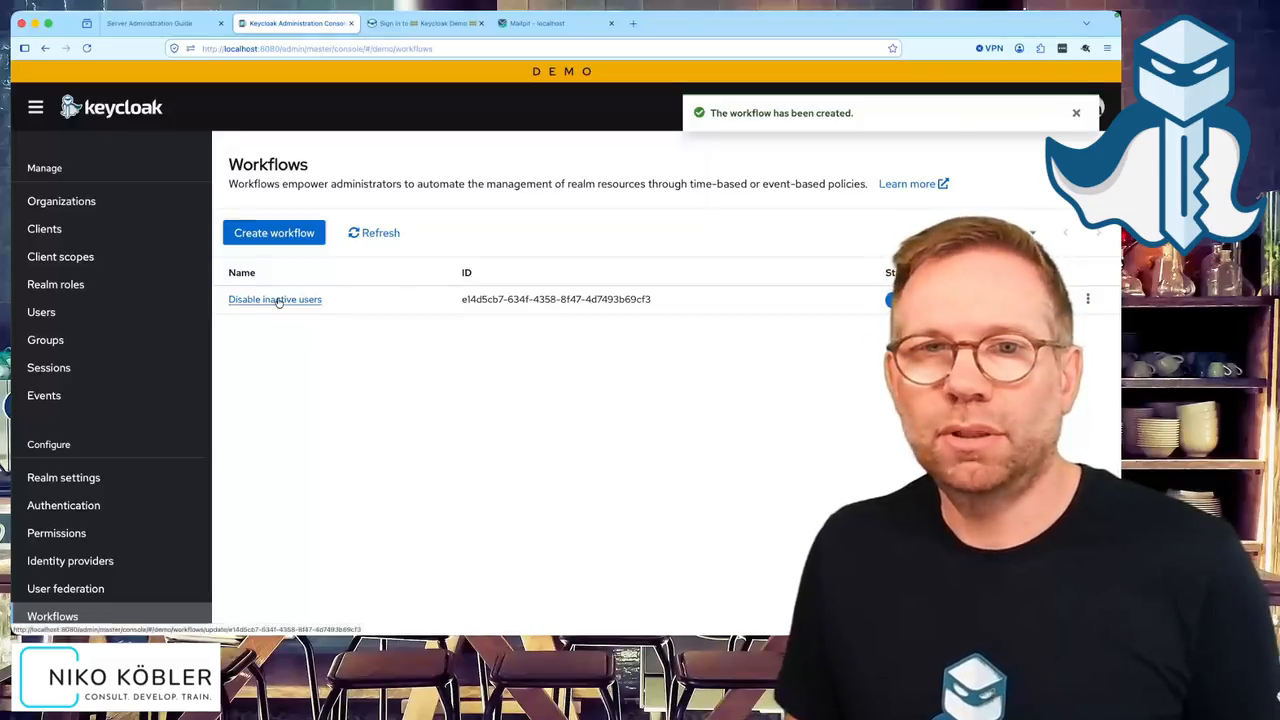
After clicking Create, the workflow appears in the overview and is active. Via its name, I can get back into the definition at any time and edit it.
The workflow in action
My test user jane.doe comes from an external identity provider with the alias oidc.
Before the first login, the user doesn’t exist in Keycloak yet, so searching the users for “doe” returns no results.
After logging in via the external IdP, Keycloak creates the user, and the user_authenticated event starts the workflow for jane.doe.
I can see this in the user details on the Workflows tab:
It lists the “Disable inactive users” workflow with its next step, and below that all steps with the time they are scheduled for.
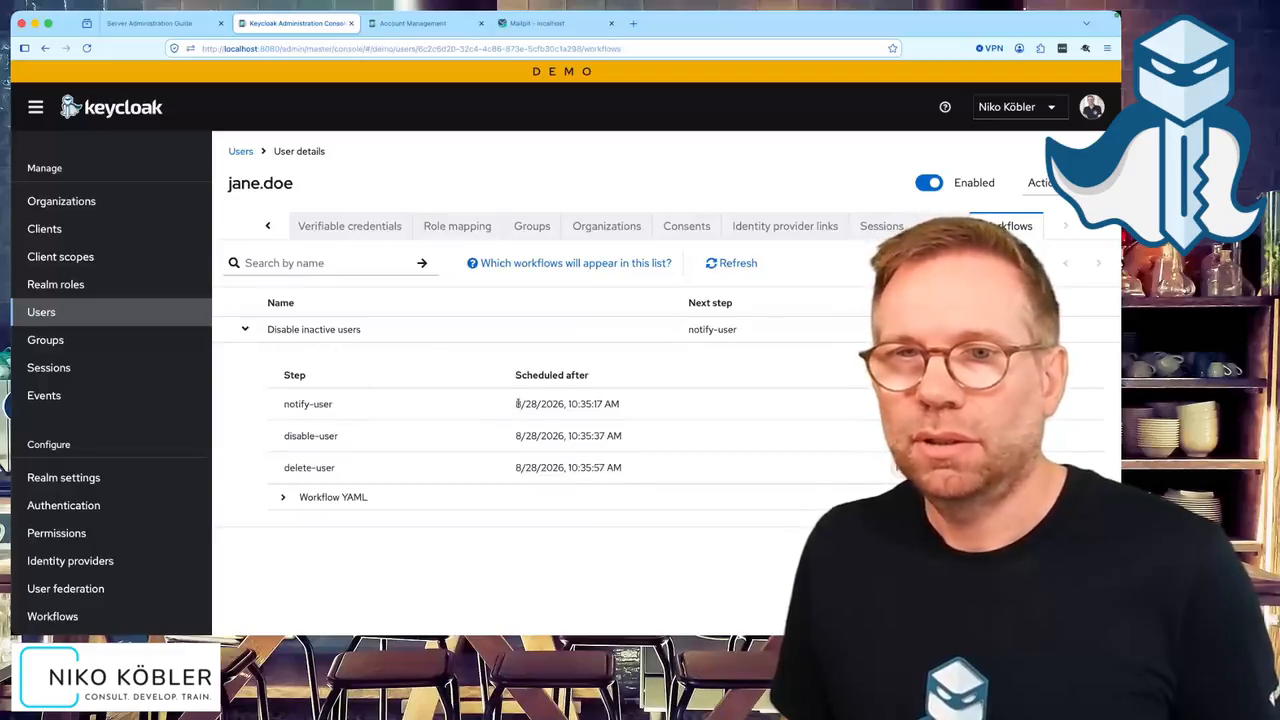
After 20 seconds, notify-user is done and the next step is disable-user.
The inbox contains the email with my custom subject “Please be aware of this!” and the text from the workflow definition.
For comparison: an email from an earlier test without subject arrives with the default subject “Account Disable Warning”.
Another 20 seconds later, jane.doe is disabled and can no longer log in.
The user still exists, though; the next step is delete-user.
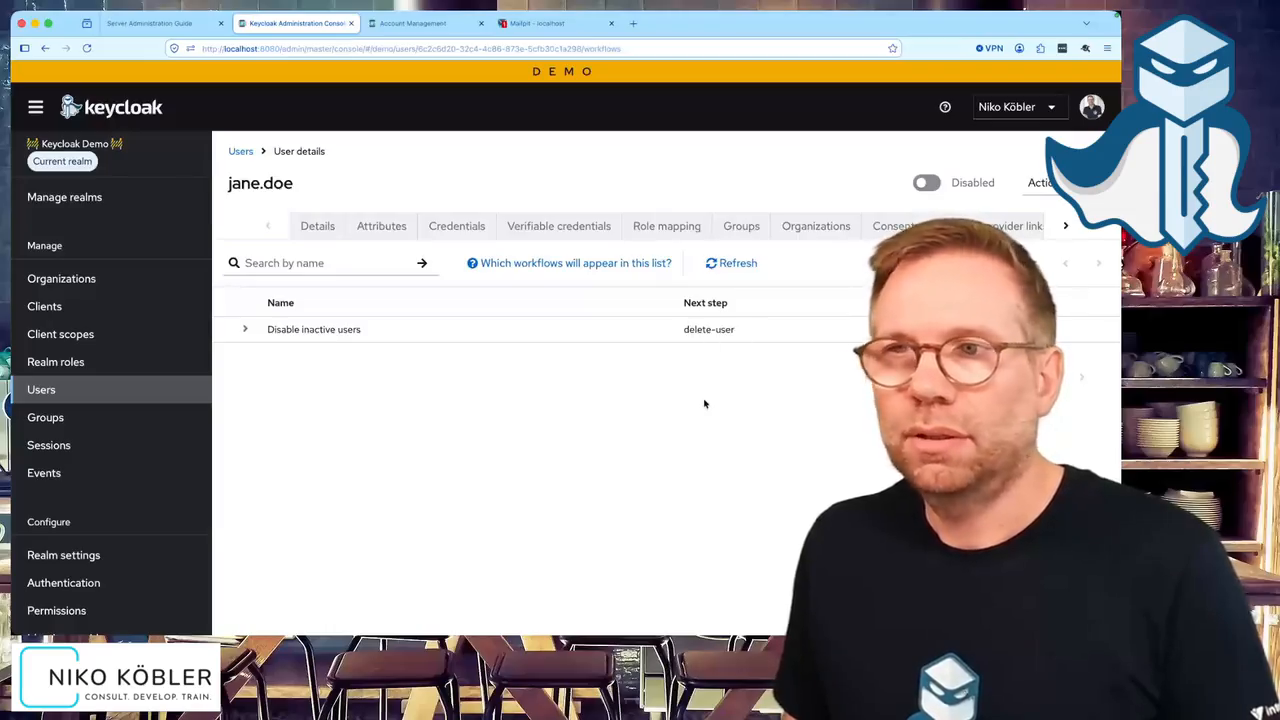
After yet another 20 seconds, the user is gone. Reloading the user details ends with the error message “user not found”, and searching for “doe” doesn’t find anyone anymore.
Restart on repeated login
In the second run, I log in with jane.doe again.
Once the notification email has arrived and disable-user is the next step, I log in once more.
Thanks to restart-in-progress, the running workflow is reset, notify-user is the next step again, and 20 seconds later another email arrives.
If I leave the user alone after that, the workflow runs through to disabling and deleting as before.
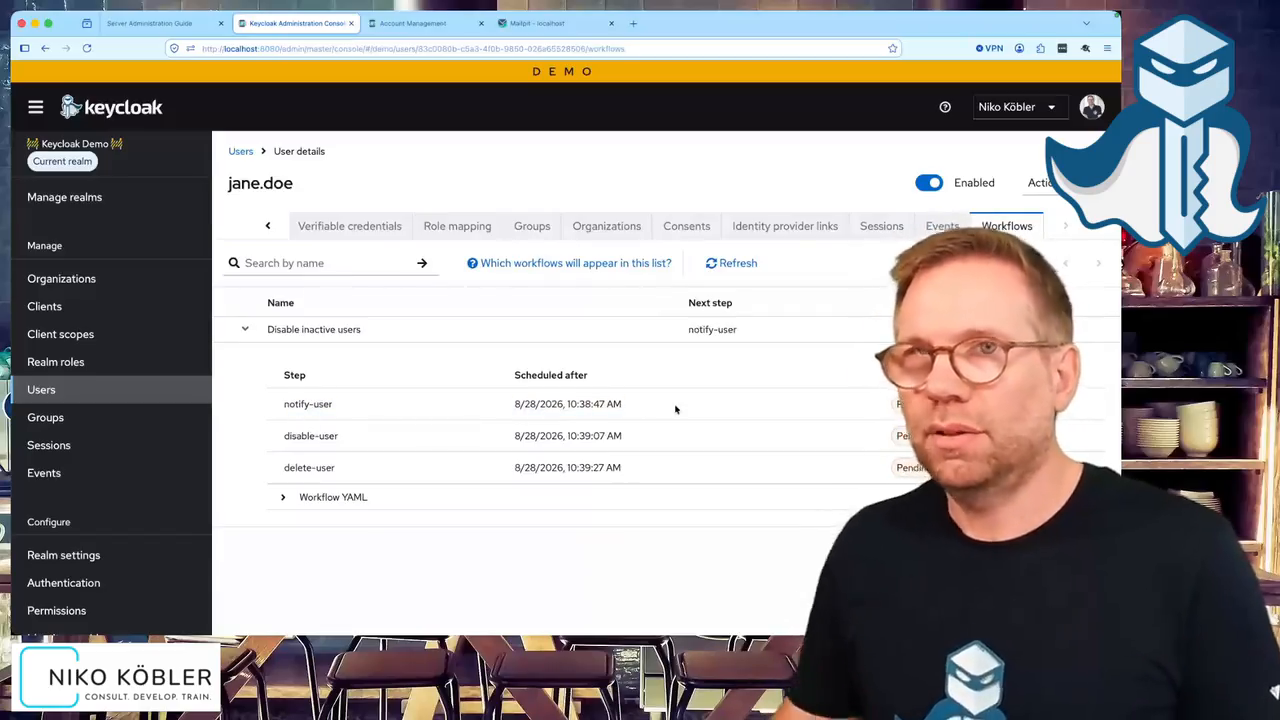
As a cross-check, a look at my regular user dasniko:
This user hasn’t logged in since the workflow was created, so the Workflows tab is empty.
The workflow is only started by the event I defined in the definition.
What else workflows can do
My example covers only a small part. The documentation describes all options in detail; here’s an overview of the most important ones.
Events
Besides user_authenticated, further events are available:
| Event | When | Parameter |
|---|---|---|
user_created |
User is added to the realm | – |
user_authenticated |
User authenticates to the realm | Client ID of the client acting on behalf of the user |
user_federated_identity_added |
User is federated or linked to an IdP | Identity provider alias |
user_federated_identity_removed |
Link to an IdP is removed | Identity provider alias |
user_role_granted |
A role is granted to the user | Role name |
user_role_revoked |
A role is revoked from the user | Role name |
user_group_membership_added |
User joins a group | Group name or path |
user_group_membership_removed |
User is removed from a group | Group name or path |
client_created |
Client is added to the realm | – |
client_authenticated |
Client authenticates (e.g. client credentials grant) | – |
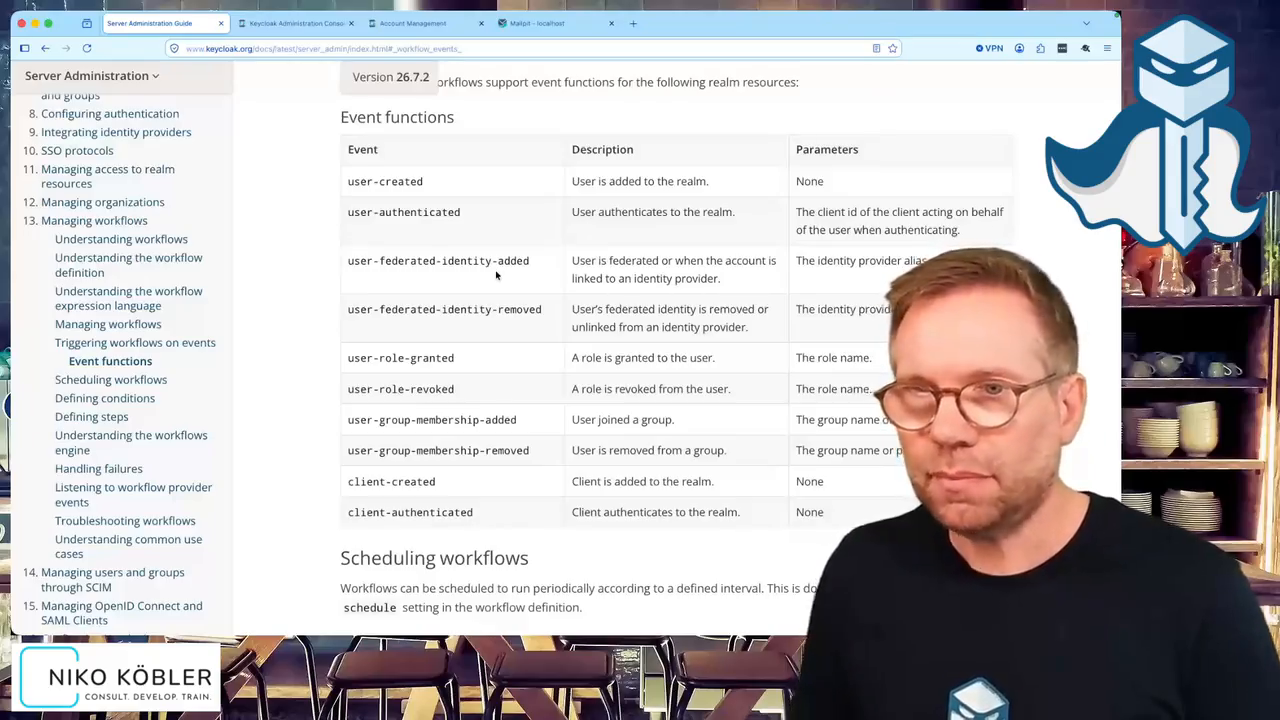
Events are functions in an expression and can therefore take parameters. A workflow that only starts when a user joins a specific group looks like this, for example:
on: user_group_membership_added(/mygroup)
With this, I could send a user an email as soon as they’ve been added to a new group.
Multiple events can also be combined logically:
on: user_created or user_authenticated
Scheduled workflows
Instead of reacting to an event, a workflow can also run periodically.
This is done with the schedule setting:
name: Track inactive users
schedule:
  after: 5s
  batch-size: 100
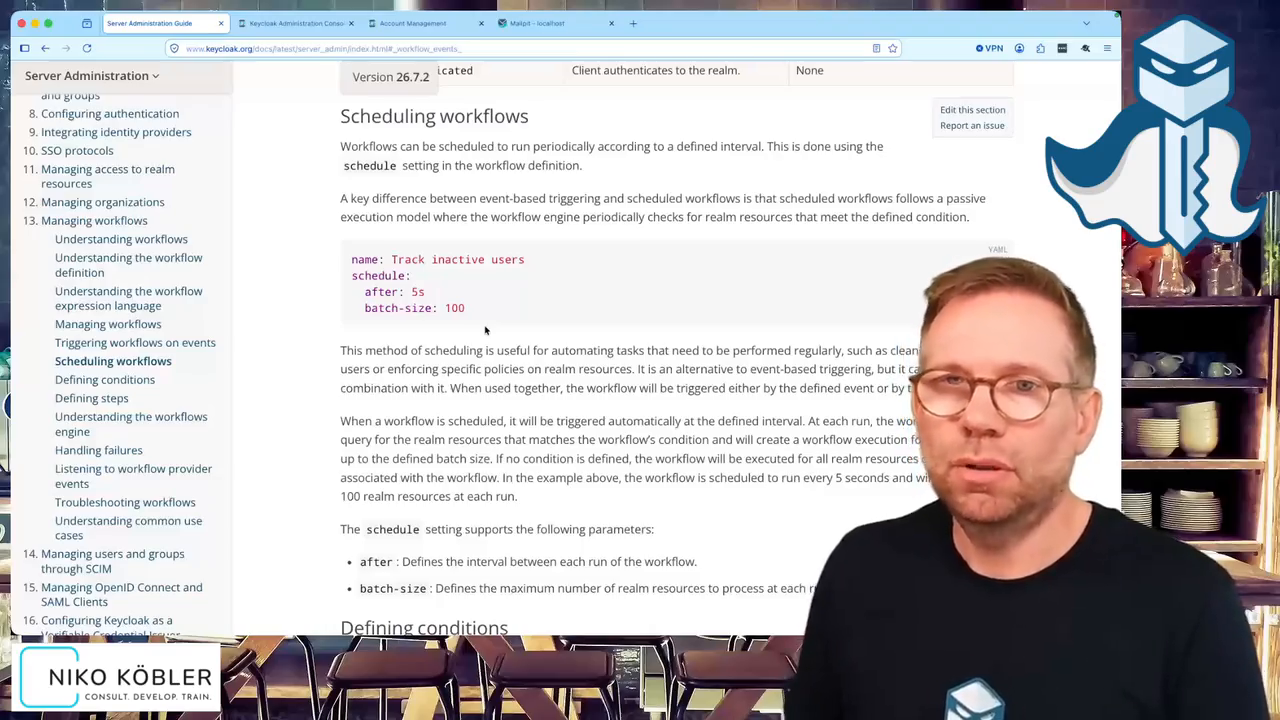
after defines the interval between two runs, batch-size the maximum number of realm resources processed per run.
On each run, the workflow engine looks for the resources matching the condition and starts the workflow for them.
Without a condition, this applies to all resources.
This also answers an obvious question about my example:
An event-based workflow only covers users who trigger the event.
Someone who never logs in again after the workflow has been created is never picked up by a user_authenticated workflow, because there is no event for “has not logged in”.
With schedule, on the other hand, I can also pick up and process users for whom no event occurs at all.
Conditions
Among others, these conditions are available for if:
has-user-attribute: The user has a certain attribute, optionally with a certain value.has-role: The user has a certain role.has-identity-provider-link: The user is linked to an identity provider (parameter: alias).is-member-of: The user is a member of a certain group (parameter: name or path).
Steps
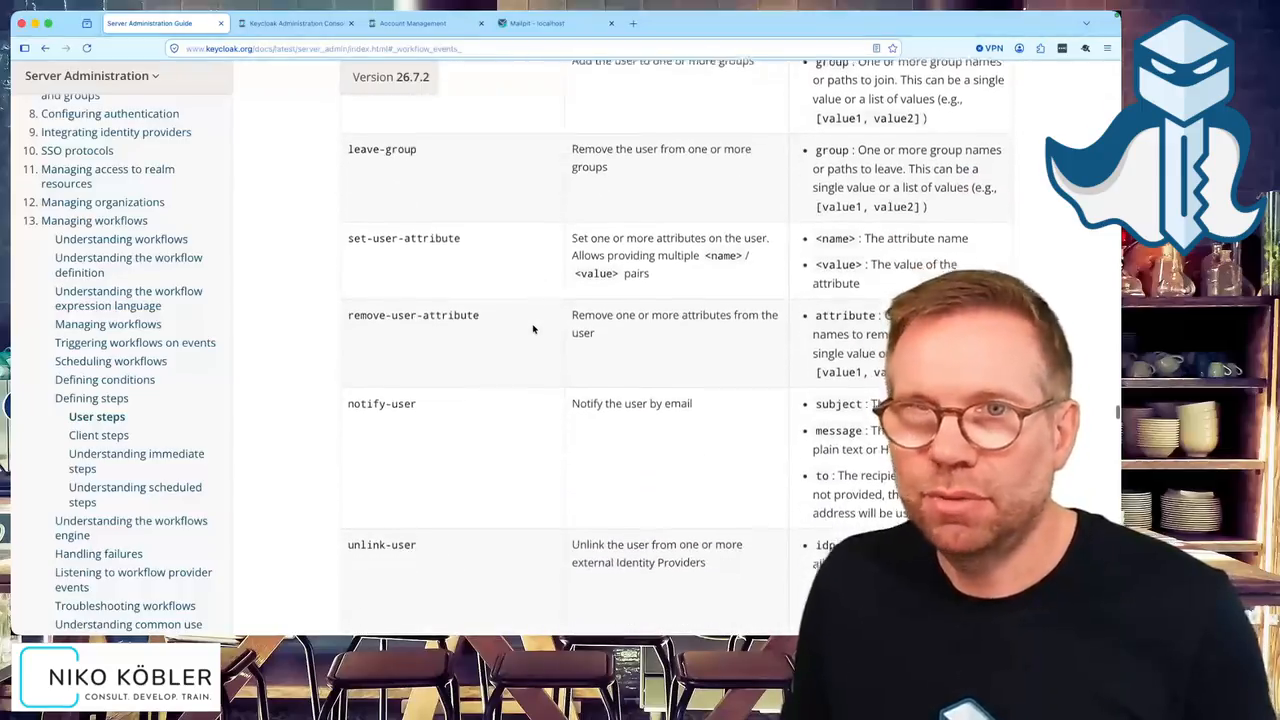
The built-in steps always target the resource associated with the event. For users, there are:
add-required-action/remove-required-action: add or remove a required action. For example, when a user is added to a group, I can automatically assign them a required action.grant-role/revoke-role: grant or revoke one or more rolesjoin-group/leave-group: add the user to or remove them from one or more groupsset-user-attribute/remove-user-attribute: set or remove attributesnotify-user: email to the user, withsubject,messageand optionallytoas recipient; withoutto, the email goes to the user themselvesunlink-user: remove the link to one or more external identity providersdisable-user/delete-user: disable or delete the user
For clients, there are accordingly disable-client and delete-client for disabling and deleting.
Immediate and scheduled steps
after accepts durations in milliseconds, seconds, minutes, hours or days, e.g. 20s or 7d.
If I omit after, the step is executed immediately.
Here, both steps run directly one after the other:
steps:
  - uses: notify-user
  - uses: disable-user
And here, the user is disabled seven days after being notified:
steps:
  - uses: notify-user
  - uses: disable-user
    after: 7d
The workflow engine executes the steps asynchronously, detached from the request that triggered the workflow. So a login doesn’t get slower just because a workflow starts in the background.
Conclusion
Workflows are a simple yet effective tool for automating the user lifecycle in Keycloak. Event, condition, step chain: that’s all it takes to handle tasks that would otherwise be done manually, and therefore often not at all.
My advice: read the chapter in the documentation carefully, play around with events, conditions and steps in a test environment, and then configure the workflows that fit your environment. And keep your Keycloak installation up to date, as the feature is still evolving.
I also show all steps from this article in the video on my YouTube channel.
If you want to introduce workflows or other aspects of identity lifecycle management with Keycloak in your organization, I’m happy to support you with consulting and training.
Du bist auf der Suche nach Keycloak Beratung, Unterstützung, Workshops oder Trainings?
Nimm Kontakt mit mir auf!« Keycloak Workflows: Inaktive Benutzer automatisch benachrichtigen, deaktivieren und löschen