Delegated User Management with Keycloak: Fine-Grained Admin Permissions (FGAP v2) in Practice
September 8, 2026
Tags: #keycloak #fine-grained-admin-permissions #authorization #delegated-administration
If you want to hand over administrative rights to other people in Keycloak, you quickly run into a problem: the classic admin roles are coarse. Very coarse.
Whoever gets manage-users manages all users of a realm – not only the ones they are actually supposed to take care of.
With Fine-Grained Admin Permissions (FGAP) version 2, this can be narrowed down properly.
In this article, I use a concrete example to show how it works and where the pitfalls are.
The Problem: All or Nothing
Let’s imagine a typical scenario: a realm contains many users from different sources – from an LDAP, from a connected Entra ID, from other external identity providers, or created locally. A team lead, a business department or a tenant should now be able to manage “their” users on their own: maintain user data, set passwords, create new colleagues.
With the standard roles, I only have one option: I give the user roles like view-users and manage-users.
That works – but for all users of the realm. Restricting it to a subset of users, for example only the members of a certain group, is not possible this way.
For the example in this article, I use the following scenario:
In the realm demo, there is a group doe-family with the members jane.doe and john.doe.
In the admin console, John should only be able to see and manage the members of this group – and nobody else.
Admin Access in Keycloak: Three Levels
Before we dive in, it’s worth taking a quick look at the options Keycloak offers for granting administrative access in general. The server administration guide describes this in the chapter Managing access to realm resources.
Master realm access: The master realm is a special realm. Users with the admin role are super users here and have access to the entire server, i.e. to all realms.
Dedicated realm admin consoles: Each realm has its own admin console at /admin/{realm-name}/console.
Users of that realm can be granted administrative rights there by assigning them client roles of the built-in realm-management client – such as create-client, impersonation, manage-clients, manage-users, query-groups or query-users.
This is probably the approach most of you know. However, the rights always apply to an entire resource type: all clients, all users, all groups.
Fine-Grained Admin Permissions: The third and most granular level. Here, I no longer grant rights on entire resource types, but – where needed – on individual resources, for example on a specific group and its members.
Version 1 vs. Version 2
FGAP has been around in Keycloak for quite a while. However, the first version was very complex, hard to understand and hardly usable in practice. It is now deprecated, no longer enabled by default, and will most likely be removed soon.
Since Keycloak 26.2, there is the completely reworked version 2, and that’s the version we want to go forward with. Everything I show in this article was done with Keycloak 26.7, the current version at the time.
The Building Blocks of FGAP v2
FGAP v2 is based on two concepts: permissions and policies.
A permission describes what may be accessed and with which operations. It consists of:
- a resource type – you can choose from Clients, Groups, Organizations, Roles and Users,
- one or more authorization scopes, i.e. the allowed operations (e.g.
viewormanage-members), - whether the permission applies to all resources of this type or only to specific ones (Enforce access to),
- one or more policies.
A policy describes who may use the permission. The available policy types are Aggregate, Client, Client-scope, Group, Regex, Role, Time and User. This way, a permission can be bound to a single user, to all members of a group or to a role – or it can be restricted in time, e.g. only between 8 and 10 o’clock. Each policy also has a logic: Positive (the policy applies to the selected users) or Negative (it applies to everyone except the selected users).
As a side note: Organizations are also available as a resource type. I covered what the Organizations feature is all about in a separate video.
Step 1: Enable the Feature in the Realm
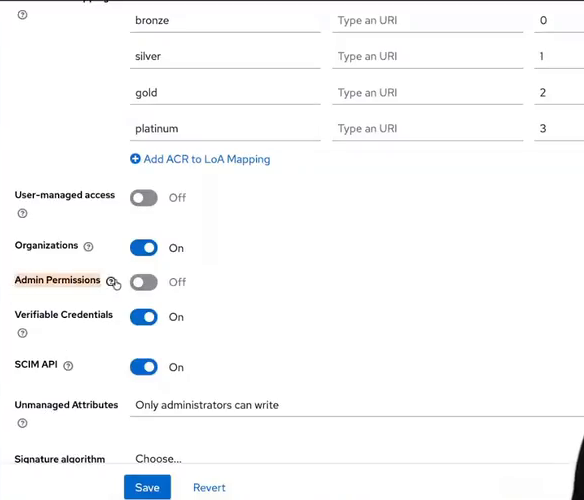
FGAP v2 is enabled per realm and is turned off by default. In the Realm settings, you’ll find the Admin Permissions switch. Set it to On and save.
After that, a new entry appears in the left-hand menu: Permissions. Behind it are the three tabs Permissions, Policies and Evaluation – all empty at first, of course.
Step 2: The Basic Roles for the Delegated Admin
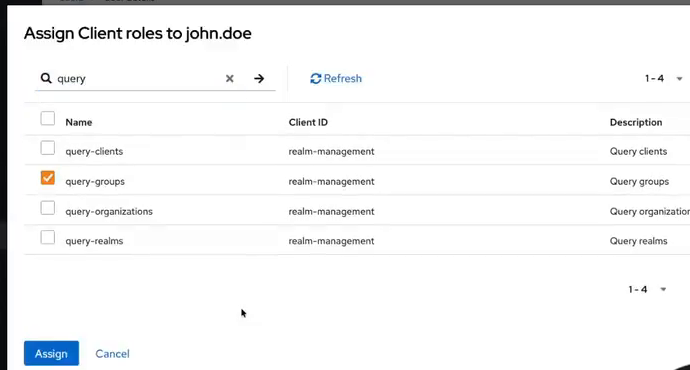
Even with FGAP, we can’t do entirely without classic roles.
For John to get into the realm’s admin console at all and to use the Users and Groups sections there, he needs two client roles of the realm-management client:
query-users– so he can access the user section and search for users,query-groups– so he can access groups and their members.
The query-* roles ensure that John can use the admin console at all and sees the menu entries matching the roles – in this case Users and Groups. They also allow him to search. What John actually gets to see in a search, however, is a different question.
This is easy to try out: if I log in as John to the realm’s admin console (/admin/demo/console) and search for all users, I get – nothing. John is allowed to search, but he has no permission to view users.
If I additionally assign John the view-users role for testing and reload the console, the search for * returns all users of the realm.
That’s the regular, expected behavior of the global role – and exactly what we don’t want. So I remove view-users again, leaving only query-users and query-groups.
By the way, the roles don’t have to be assigned to individual users. If several people should get the same delegated rights, it makes sense to assign the roles to a group. In this example, it’s just John.
Step 3: Create the Permission – Groups, not Users
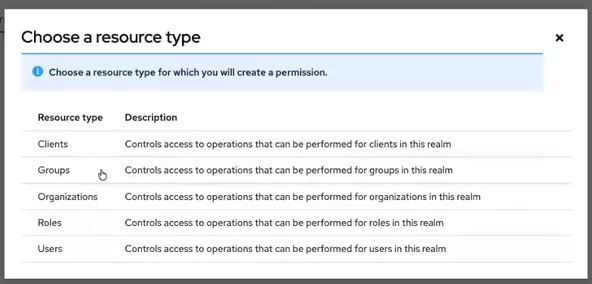
Now we get to the core. In the Permissions section, I click Create permission and first have to select the resource type.
John is supposed to manage users, so the resource type Users seems obvious. But that’s not the right way! John shouldn’t manage arbitrary users, but the users of a specific group. That’s why we need the resource type Groups. Within this type, there are dedicated authorization scopes that refer to the members of a group.
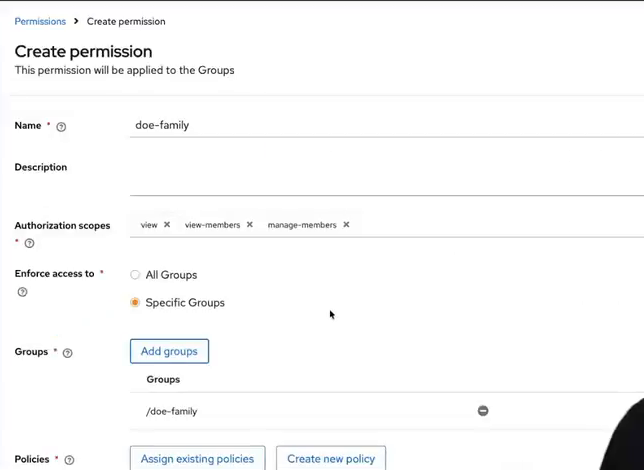
I configure the permission as follows:
- Name:
doe-family - Authorization scopes:
view,view-members,manage-members - Enforce access to: Specific Groups
- Groups:
/doe-family
With view, John may see the group itself, with view-members its members, and with manage-members he may also manage those members.
What I deliberately do not grant is the manage scope. It would allow John to change the group itself.
But John should only see the group and take care of its members – nothing more.
Step 4: The Policy – Who Is Allowed?
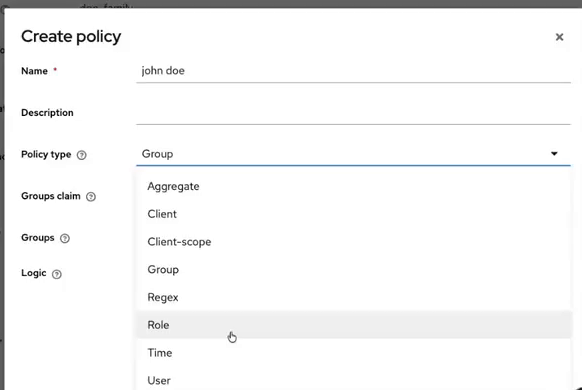
What’s still missing is the answer to the question of who may use this permission. If suitable policies already existed, I could assign them via Assign existing policies. Since we’re just getting started with the feature, I create a new one directly from the permission via Create new policy.
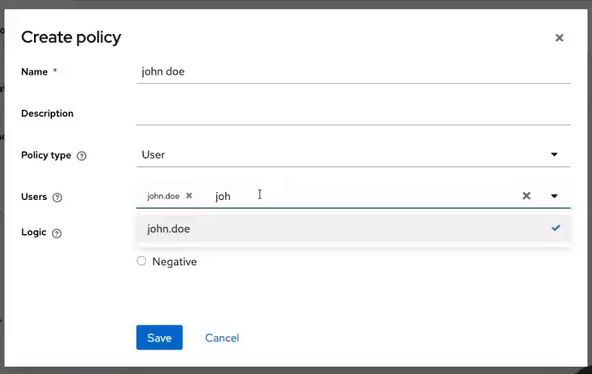
Since the permission should only apply to a single user, I choose User as the policy type – not Group:
- Name:
john doe - Policy type: User
- Users:
john.doe - Logic: Positive
Negative would mean: every user except John. Obviously not what we want here.
After saving, the policy is automatically assigned to the permission. Now I just have to save the permission itself.
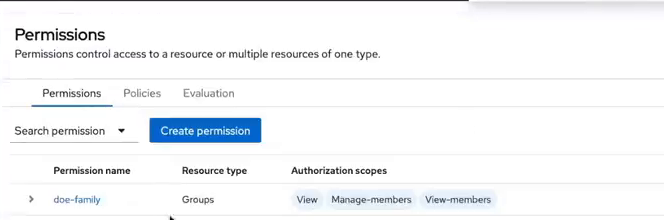
In the overview, I then see the permission doe-family with the resource type Groups and the three scopes.
Using the Evaluation tab, I could now theoretically test permissions and policies. This is helpful if you can’t try out the result live right away.
I prefer to look at the result directly in the admin console.
The Result from John’s Perspective
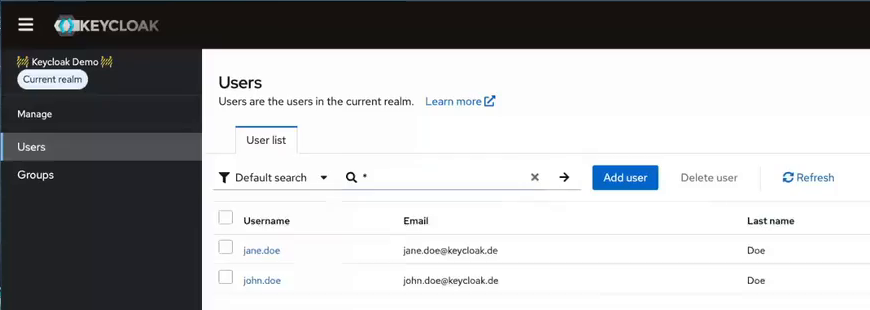
After reloading the admin console, John now sees Users and Groups in the menu.
Under Groups, only doe-family shows up; all other groups of the realm – such as the ones from the LDAP – are not visible to him.
Under Users, no users are displayed initially, because a user federation is active in the realm. In this case, you have to search explicitly.
A search for *, which returned all users earlier with view-users, now returns exactly two results: jane.doe and john.doe.
Within this group, John has extensive rights thanks to manage-members. He can:
- edit user details, e.g. add a phone number for Jane,
- set credentials, i.e. give Jane a (temporary) password,
- maintain role mappings and group memberships,
- delete users.
UI and API Don’t Always Match
What John can’t do is change the group itself – after all, we deliberately didn’t give him manage.
Interestingly, though, in the doe-family group the admin console still shows an active button for creating a subgroup on the Child groups tab.
If I try to create a child group with it, I get an error message.
So the admin console doesn’t always reflect the actual permissions exactly. What matters is what the Admin API allows – and it correctly prevents the action.
Pitfall: Creating New Users
One question remains: can John also add new users to the family?
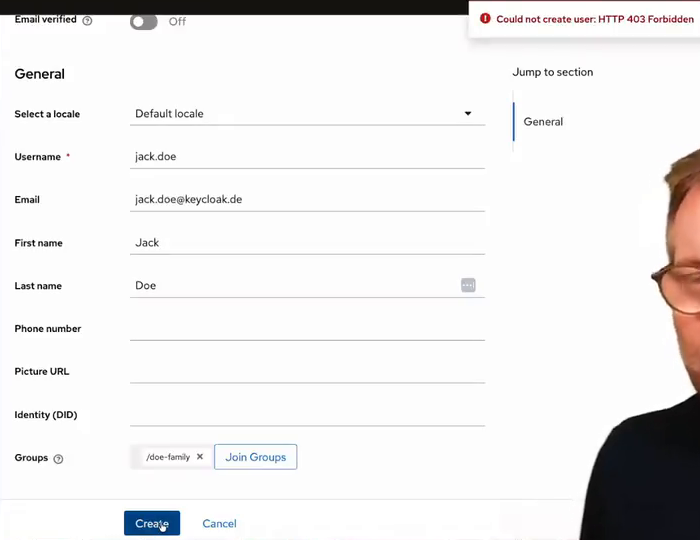
The user section has an Add user button. So I create jack.doe, Jane’s brother, click Create – and get Could not create user: HTTP 403 Forbidden.
The first thought: of course, John may only manage members of the doe-family, so the new user must be assigned to this group right away.
Via Join Groups, I select /doe-family – and still get a 403.
The reason: a permission is missing. With our permission, John may see the group, see its members and manage its members. What he may not do is manage the membership of the group. But a new user isn’t a member yet – they first have to be made a member.
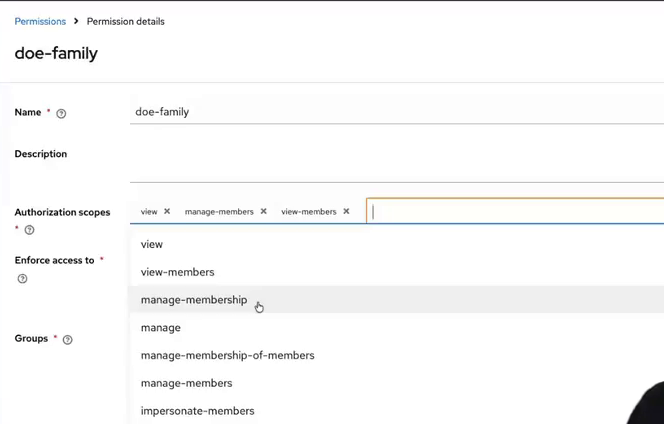
That’s what the authorization scope manage-membership is for. I add it to the doe-family permission and save.
By the way, the change takes effect immediately; there’s no need to reload the admin console. That’s because only the permission has changed, not the user’s roles.
Now John can create jack.doe and assign him to the doe-family right away.
In the group selection, he is only offered this one group – he can’t see any other groups anyway.
The group now has three members: John, Jane and Jack. And since John may fully manage the members, he can also delete Jack again.
Overview: The Authorization Scopes for Groups
Finally, a short overview of all scopes available for the Groups resource type:
| Scope | Meaning |
|---|---|
view |
View the group itself. |
manage |
Manage the group itself, i.e. change its configuration. |
view-members |
View the members of the group. |
manage-members |
Manage the members of the group: change details, set credentials, assign roles, delete. |
manage-membership |
Add members to or remove members from the group – required e.g. when creating new users in the group. |
manage-membership-of-members |
Manage the group memberships of the members, i.e. assign members of this group to other groups or remove them from those groups. |
impersonate-members |
Impersonate members of the group. Also applies to all subgroups in the hierarchy, unless explicitly denied for individual subgroups. |
So for the scenario “a user manages the members of a group, including creating new ones”, the combination of view, view-members, manage-members and manage-membership is sufficient – together with the two roles query-users and query-groups.
Conclusion
With Fine-Grained Admin Permissions version 2, delegated administration in Keycloak is finally practical. Instead of realm-wide roles that always apply to all users at once, I grant targeted rights on individual resources – for example on the members of a single group.
The key points in a nutshell:
- FGAP v2 is enabled per realm via Realm settings → Admin Permissions.
- The delegated admin still needs the basic roles
query-usersandquery-groups, but no globalview-*ormanage-*roles. - Whoever should manage the users of a group gets a permission on the resource type Groups, not on Users.
- To create new users in the group,
manage-membershipis additionally required. - The admin console doesn’t always show exactly what is allowed – the Admin API is what counts.
Try it out and play around with the different resource types, scopes and policies. And always keep your Keycloak environment up to date – not only for new features like this one, but above all for the fixes of security vulnerabilities (CVEs).
I show the complete example step by step in my video on this article.
Do you want to introduce delegated administration in your Keycloak environment or design a sustainable permission model? I’m happy to support you with consulting and trainings.
Du bist auf der Suche nach Keycloak Beratung, Unterstützung, Workshops oder Trainings?
Nimm Kontakt mit mir auf!« Delegierte Benutzerverwaltung mit Keycloak: Fine-Grained Admin Permissions (FGAP v2) in der Praxis Keycloak Workflows: Inaktive Benutzer automatisch benachrichtigen, deaktivieren und löschen »